Notion同步到CSDN + 构建Obsidian本地博客环境指南
前言
本人经常在Notion写博客,突然有一天想将Notion的某个模块同步到CSDN上。本来是很简单的事情,只需从Notion导出markdown文档,然后到CSDN上传即可。若图片很少,直接复制粘贴最简单。但是,由于我的文档很多、文档中的图片很多,前面这种导入方式需要手动一个个复制粘贴图片,非常繁琐耗时。所以在网上找了不少资料,希望有简单快捷的方式实现同步功能。
经过一天的摸索,找到 3 种不错的方法,现在记录分享给大家。
- 使用 VSCode 中的插件实现同步;
- 使用obsidian+piclist+gitee+python脚本构建本地笔记存储系统,并实现同步;
- 使用python脚本实现同步;(尝试了但未走通…)
方案1:使用VSCode插件
这个方案相对简单,具体步骤:
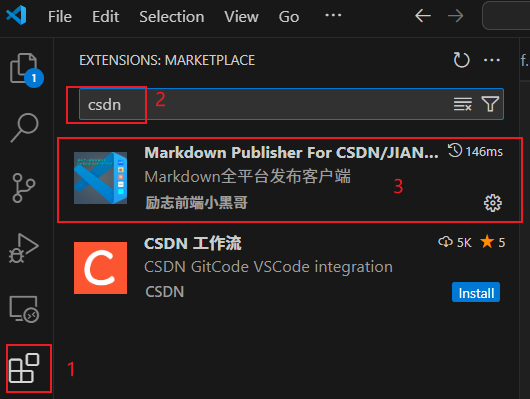
电脑安装vscode,插件里搜csdn,安装Markdown Publisher For CSDN插件。
进入插件的配置页面,需要配置两个浏览器的参数
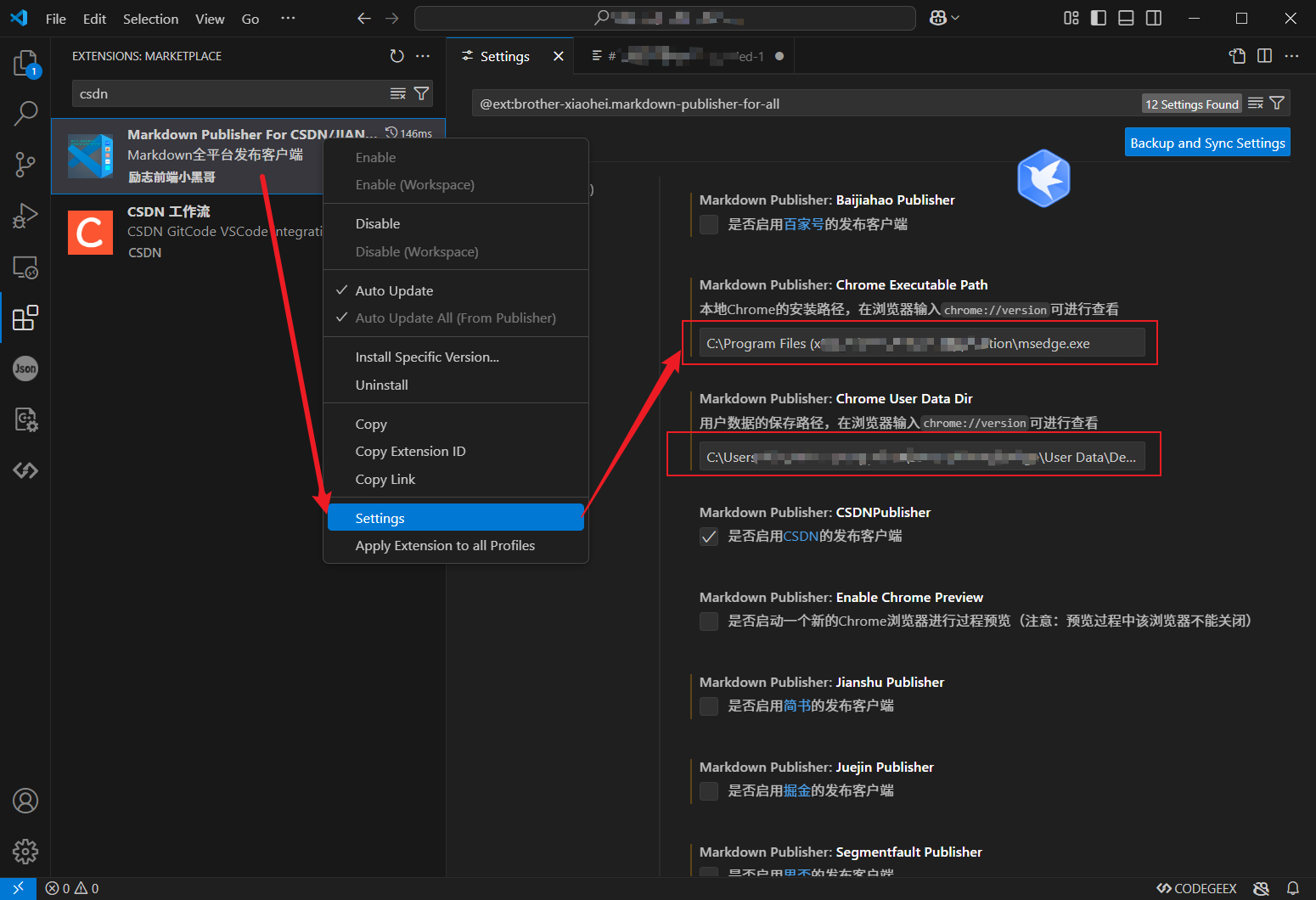
这两个参数从哪里来?咱们接着往下看
在Chrome中输入chrome://version,即可获取它们了,如下图: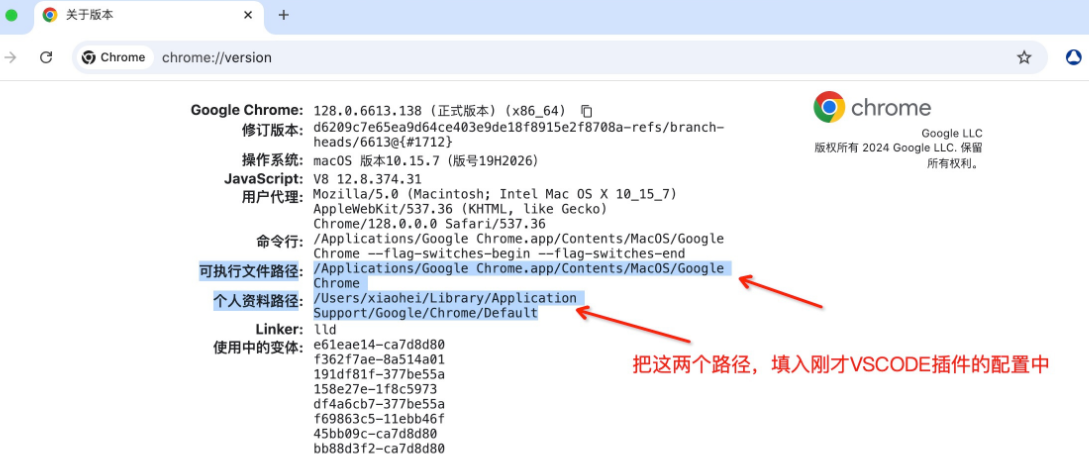
回到插件的配置页面,将这两个参数填好,整个配置就结束了,非常简单!
- 插件使用
在任意一个md文件中,点击鼠标右键,选择需要发布的平台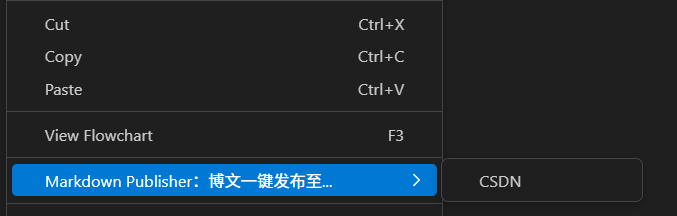
首次使用需要扫码登录,注意一定要使用微信。扫码登录之后,等一两分钟就结束了!(不用输入密码,相对安全)。
点击返回的链接,在浏览器界面进入CSDN编辑器,可以适当调整,然后再发布!
推荐!具体步骤可以参考插件提供者的博客:blog博文多平台一键发布插件,前端小黑哥开发的,这是一篇保姆级使用教程_vscode多平台发布工具-CSDN博客
方案2:使用obsidian+piclist+gitee+python脚本
这个方案相对复杂,适合动手能力强的朋友,在实现同步的同时构建本地博客存储系统。
整体步骤
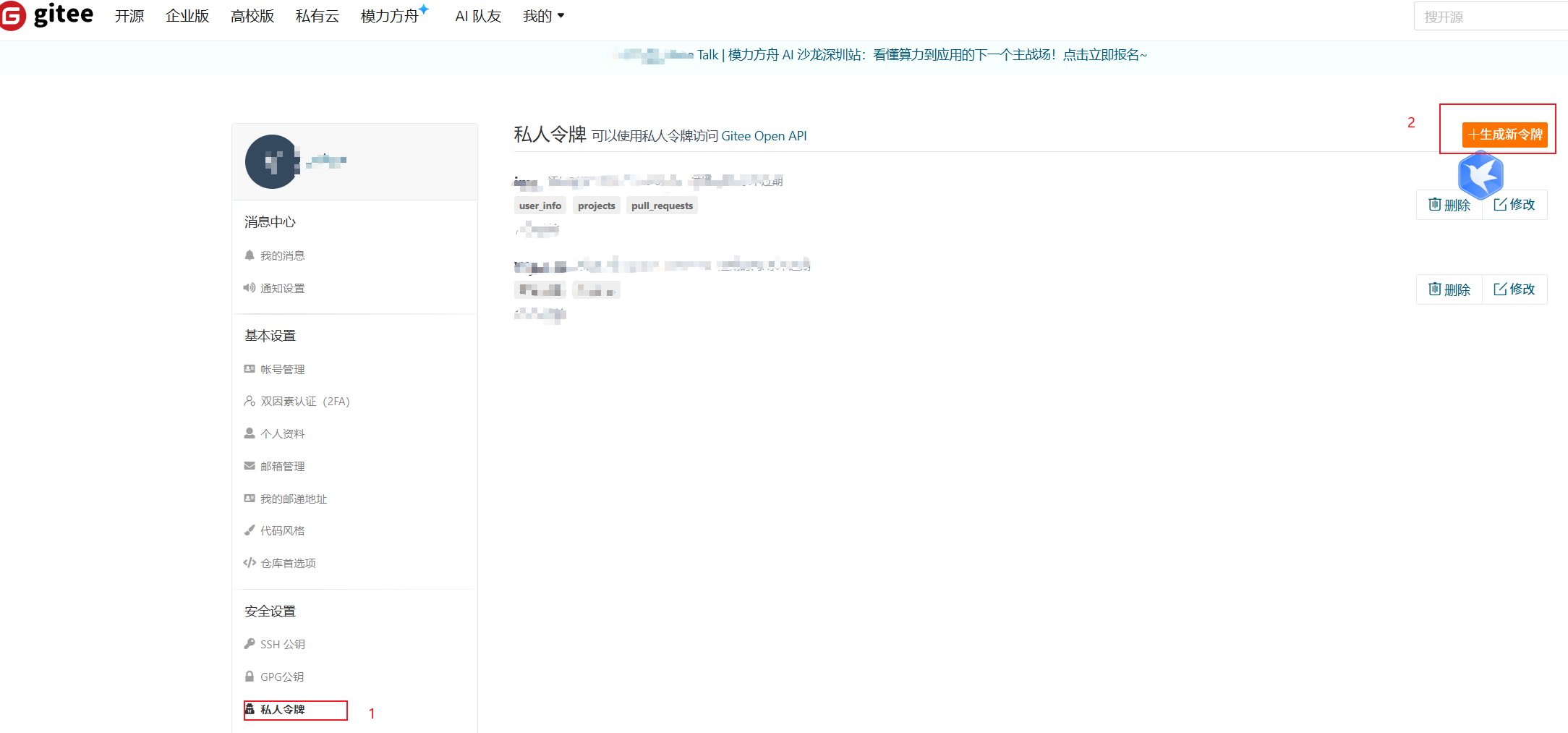
在gitee上创建仓库(图床),设置里创建并复制私人令牌
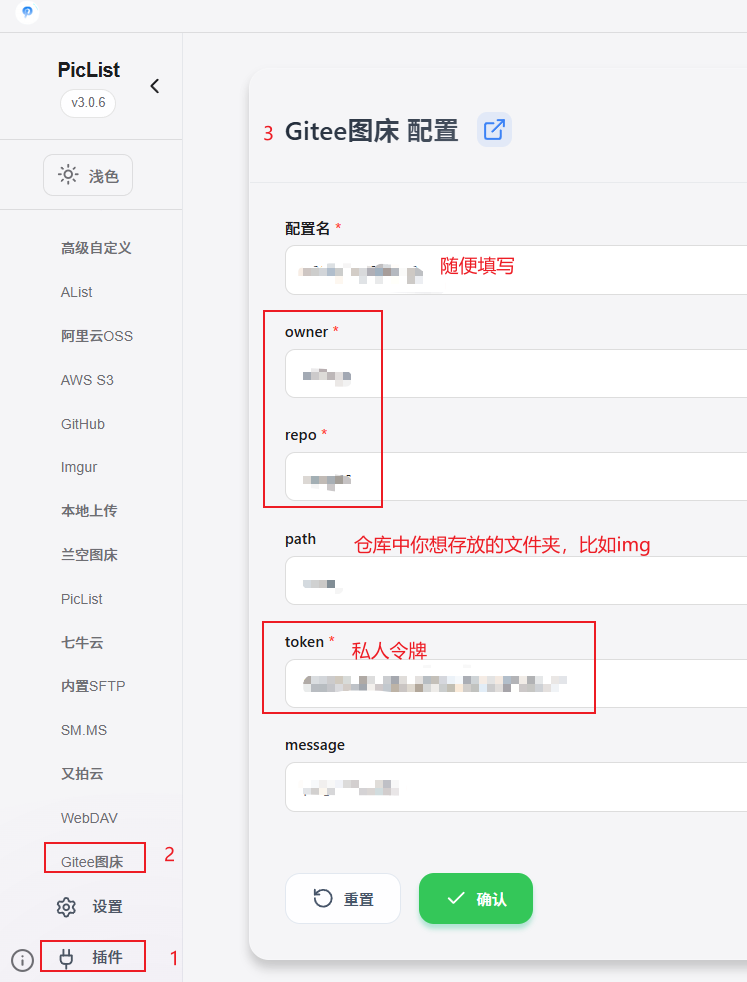
安装piclist,在piclist中搜索、安装gitee_upload插件,配置上一步中gitee图床相关信息
将Notion笔记以md格式导出
使用[obsidian](Obsidian - Sharpen your thinking)打开md文档,安装启用第三方插件image_auto_upload
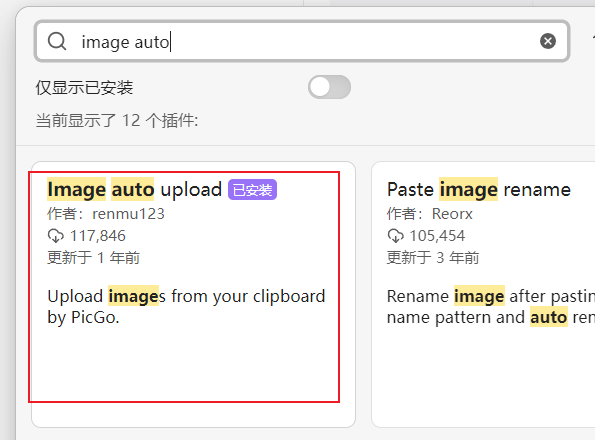
在md文档页上“ctrl + p” 打开命令面板,输入“image auto upload”导出所有图片到gitee,并自动替换原始图片链接为你的gitee中图片的url
复制md页面到CSDN编辑页面,适当调整后发布。
首次配置整体流程看起来很长,但是后面只需执行第3、5、6即可完成Notion到CSDN的文档发布。相比于复制粘贴几十上百的图片还是方便的。
注意
- 第5步最容易出错
保证电脑已经安装Node.js,因为PicList的插件需要通过npm(这是别的博客提到的,本人没遇到)。
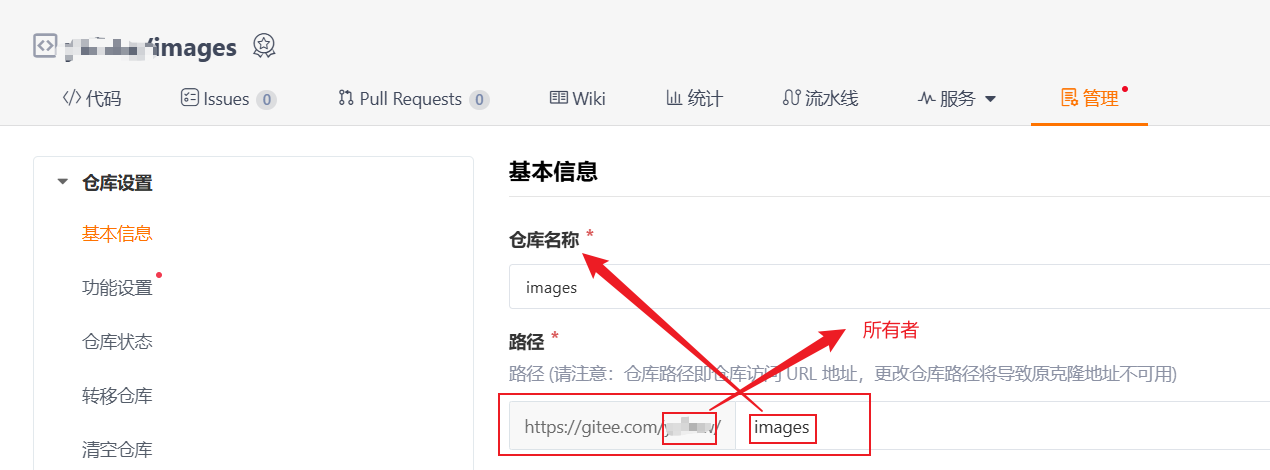
若出现上传图片返回状态404,需要检查第二步,仓库名是否正确,注意大小写?令牌是否正确?
若返回url后,图片并不显示:需要检查原图图片名是否有空格,将链接中的空格用“%20”替换即可。这里提供一个python脚本,帮助大家一键修复。
import os
import re
# 定义常见的图片文件扩展名
IMAGE_EXTENSIONS = ['.png', '.jpg', '.jpeg', '.bmp', '.svg', '.gif', '.tiff', '.webp']
# 定义匹配图片链接的正则表达式
IMAGE_URL_PATTERN = r'(!\[.*?\]\(https://[^\)]+/)([^/]+)(\))'
def is_image_file(filename):
"""检查文件是否为图片类型(根据文件后缀判断)"""
return any(filename.lower().endswith(ext) for ext in IMAGE_EXTENSIONS)
def replace_spaces_in_image_links(md_file_path):
"""读取 md 文件并将符合条件的图片链接中的文件名部分的空格替换为 '%20'"""    with open(md_file_path, 'r', encoding='utf-8') as file:
lines = file.readlines()
modified_count = 0  # 记录修改次数
total_count = 0  # 记录总共找到多少图片链接
modified_lines = []  # 记录修改的行号
# 遍历每一行,检查并替换图片链接中的空格
for line_num, line in enumerate(lines, start=1):
# 查找符合条件的图片链接
matches = re.findall(IMAGE_URL_PATTERN, line)
for match in matches:
total_count += 1
url = match[1]  # 获取文件名部分
if ' ' in url and is_image_file(url):  # 如果文件名中有空格并且是图片文件
new_url = url.replace(' ', '%20')  # 替换文件名中的空格为 %20                modified_line = line.replace(url, new_url)
# 如果修改了链接,则更新行
if new_url != url:
lines[line_num - 1] = modified_line
modified_count += 1
modified_lines.append(line_num)
# 保存修改后的内容
with open(md_file_path, 'w', encoding='utf-8') as file:
file.writelines(lines)
# 输出结果
print(f"Total image links found: {total_count}")
print(f"Total modified: {modified_count}")
print(f"Modified lines: {modified_lines}")
def process_directory(directory_path):
"""处理文件夹中的所有 .md 文件"""
for root, dirs, files in os.walk(directory_path):
for file in files:
if file.endswith('.md'):
md_file_path = os.path.join(root, file)
replace_spaces_in_image_links(md_file_path)
# 输入文件夹路径
directory_path = input("Enter the folder path containing the markdown files: ")
process_directory(directory_path)
```
其他细节可以参考下面博客:
使用 PicList + Gitee 为 Obsidian 部署免费图床-CSDN博客
方案3:使用python脚本
这个方案如果实现,是最简单、安全的方式。但是,经过尝试几个小时,只是可以通过API登录CSDN,想要上传图片并拿到URL、上传文档到CSDN并返回编辑状态的URL却没有实现。有兴趣的朋友可以进一步尝试!
下面分享我的脚本
import os
import requests
import re
# CSDN 登录信息,可以使用 Cookies 模拟登录
CSDN_COOKIES = {
'sid': 'xxx',  # 从浏览器复制的 Cookie
'user': 'xxx',  # 其他相关 cookie(如果有)
}
# 图片上传函数:将图片上传到 CSDN 图床
def upload_image_to_csdn(image_path):
upload_url = "https://write.csdn.net/editormd/upload"
headers = {
"User-Agent": "Mozilla/5.0 (Windows NT 10.0; Win64; x64) AppleWebKit/537.36 (KHTML, like Gecko) Chrome/91.0.4472.124 Safari/537.36",
}
with open(image_path, 'rb') as img_file:
files = {'file': img_file}
response = requests.post(upload_url, files=files, cookies=CSDN_COOKIES, headers=headers)
if response.status_code == 200:
result = response.json()
if result['code'] == 200:
image_url = result['data']['url']
print(f"图片上传成功,URL:{image_url}")
return image_url
else:
print(f"图片上传失败,错误信息:{result.get('message', '未知错误')}")
else:
print(f"图片上传失败,HTTP 错误:{response.status_code}")
return None
# 替换 Markdown 文件中的图片路径
def replace_image_paths_in_markdown(markdown_file, image_folder):
with open(markdown_file, 'r', encoding='utf-8') as f:
content = f.read()
# 查找所有图片路径并上传
image_paths = re.findall(r'!\[.*?\]\((.*?)\)', content)
for image_path in image_paths:
# 如果是本地图片,上传并替换
if os.path.isfile(os.path.join(image_folder, image_path)):
full_image_path = os.path.join(image_folder, image_path)
image_url = upload_image_to_csdn(full_image_path)
if image_url:
# 替换 Markdown 中的图片路径为 CSDN 图床链接
content = content.replace(f'({image_path})',f'({image_url})')
# 返回替换后的内容
return content
# 提交文章到 CSDN 并返回编辑页面链接
def submit_article_to_csdn(markdown_content):
post_url = "https://write.csdn.net/editormd/ajax/saveDraft"
headers = {
'Content-Type': 'application/json',
}
data = {
'title': 'My New Article',  # 文章标题,可以修改为自动获取
'markdown': markdown_content,  # 使用替换后的 markdown 内容
}
response = requests.post(post_url, json=data, cookies=CSDN_COOKIES, headers=headers)
if response.status_code == 200:
result = response.json()
if result['status'] == 'success':
# 返回编辑状态的文章链接
article_id = result['data']['id']
edit_url = f'https://write.csdn.net/edit/{article_id}'
print(f"文章已保存为草稿,编辑链接:{edit_url}")
return edit_url
else:
print("文章提交失败:", result.get('message', '未知错误'))
else:
print("提交文章失败,HTTP 错误代码:", response.status_code)
return None
# 主函数:加载文件夹中的 Markdown 文件和图片,上传图片并提交文章
def process_and_submit_article(folder_path):
# 获取文件夹中的 Markdown 文件
for filename in os.listdir(folder_path):
if filename.endswith('.md'):  # 只处理 Markdown 文件
markdown_file = os.path.join(folder_path, filename)
print(f"处理文件:{markdown_file}")
# 替换 Markdown 中的图片路径并上传图片
markdown_content = replace_image_paths_in_markdown(markdown_file, folder_path)
# 提交文章到 CSDN,并返回编辑链接
edit_url = submit_article_to_csdn(markdown_content)
if edit_url:
print(f"文章草稿保存成功!你可以在这里编辑:{edit_url}")
else:
print(f"文章提交失败:{filename}")
else:
print(f"跳过非 Markdown 文件:{filename}")
# 调用主函数并传入包含 Markdown 文件和图片的文件夹路径
folder_path = 'xxx'  # 替换为你的文件夹路径
process_and_submit_article(folder_path)
总结
本文介绍了三种同步Notion到CSDN的方案,需要的朋友可以按需使用。
我比较喜欢方案 2,整体跑通后,不仅将Notion同步到CSDN,还在本地创建了obsidian博客系统,也算是一种备份。另外,obsidian 也可以将md文档含图片整体上传同步到云端,比如坚果云等等,感兴趣的朋友可以在摸索。